MoonTerminal · Drawing tools ·
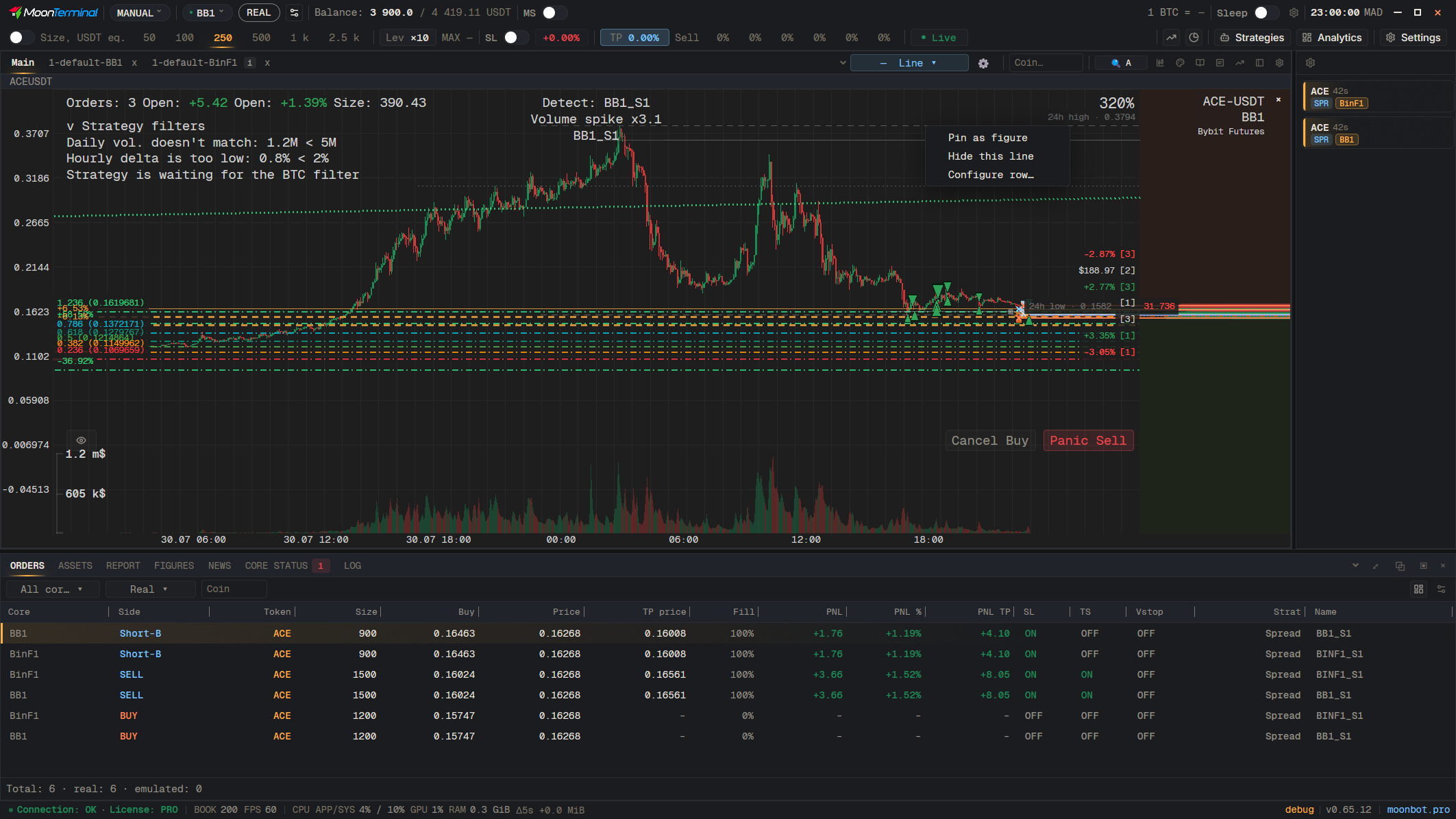
An auto line cannot be selected and dragged like a regular figure, and there is no alert on it. Hold Ctrl (Cmd on macOS) and right-click it: by default auto lines answer the mouse only with it, which is the “Lines react to the mouse only with Ctrl” checkbox in the Auto figures window. “Pin as figure” copies the line into your figures with the same look (clamp, as a level or a slanted line) and selects it right away: you can move it, change its look, and turn on an alert for it. The auto line itself stays and keeps recalculating. “Hide this line” removes it from this chart until the coin on the chart changes; after a restart it comes back too. To remove all lines of one kind, turn off the eye in their row in the Auto figures window. “Set up row…” immediately opens the editor of the row that drew this line. Hovering with Ctrl held down (Cmd on macOS) shows the line card: row, timeframe, touches, age and event. To hide all auto lines on this coin at once, use the eye at the bottom left of the chart.
- ACE — For example ACE: it opens on the Main chart
- Hover: Ctrl + hover over auto line — With Ctrl (Cmd) held, the card: row, timeframe, touches, age, event
- Right-click: Ctrl + right-click on the auto line — Without Ctrl the line ignores the mouse
- Pin as figure — The line becomes a regular figure: you can move it and set an alert
- Hide this line — Until the coin on the chart changes
- Configure row… — Opens the editor of this line's row